
SafeW not receiving notifications? Step-by-step troubleshooting
SafeW not receiving notifications is usually battery policy, notification permission or network. This guide checks system notifications, battery whitelist, background limits and in-app settings in order.
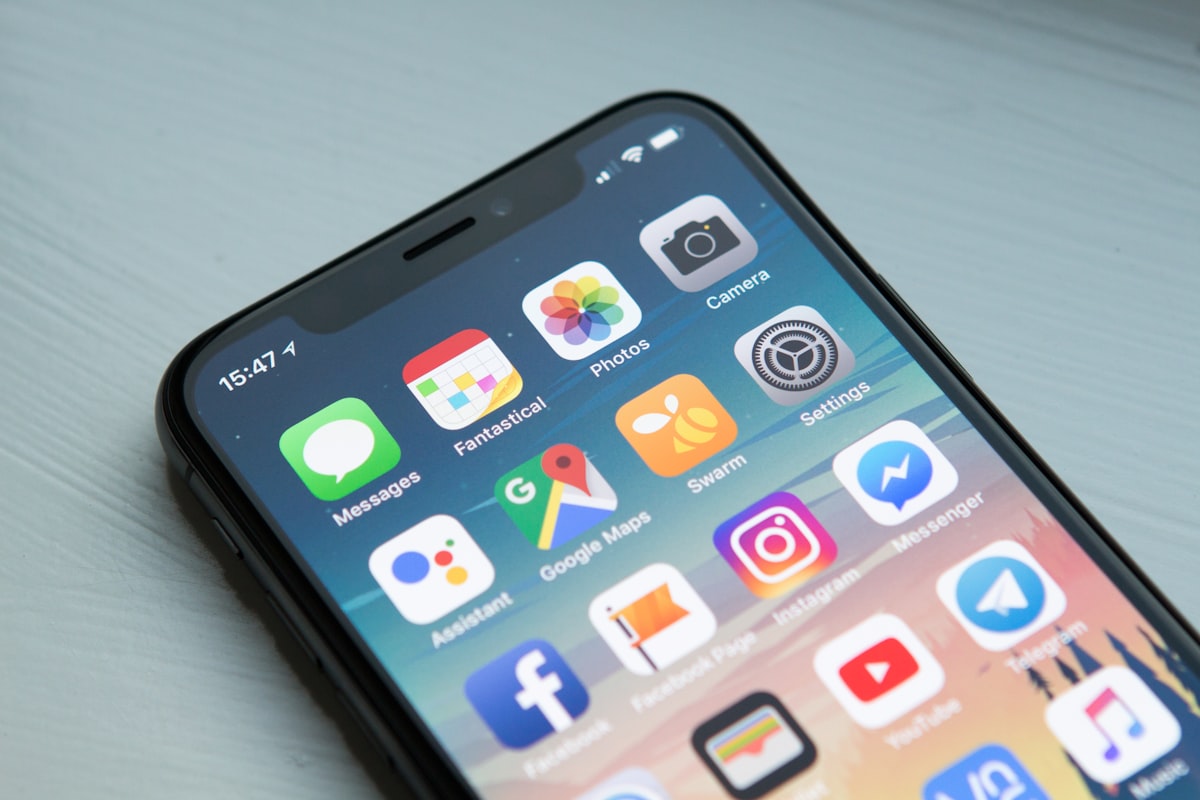
Not receiving message notifications is one of the most common SafeW issues. Don't rush to uninstall — check the following in order and most cases resolve.
Step 1: Check system notification permission
Go to your phone's "Settings > Notifications", find SafeW, and confirm "Allow notifications" is on. Many phones disable third-party app notifications by default — this is the most overlooked step.
Step 2: Add to the battery whitelist
Phones kill background apps to save battery. Add SafeW to the "battery whitelist" and "auto-start whitelist" to allow background running. Chinese Android phones especially need this checked.
Step 3: Remove background restrictions
In system settings, enable SafeW's "background running" and "auto-start". Some systems have a "lock in background" feature — lock SafeW to prevent it being cleaned up.
Step 4: Check in-app settings
Open SafeW, go to "Settings > Notifications", and confirm message alerts, sound and vibration are on. If a do-not-disturb window is set, check whether the current time is muted.
Step 5: Try switching networks
Toggle between Wi-Fi and mobile data. Some networks delay push — switching may fix it.
Summary
Nine times out of ten, missed notifications are battery policy and background restrictions. Add SafeW to the whitelist and it mostly resolves.