
SafeW login failed? Account, network, device checklist
SafeW login failure isn't always an account problem. This checklist walks you through account status, network and device settings to pinpoint the cause.
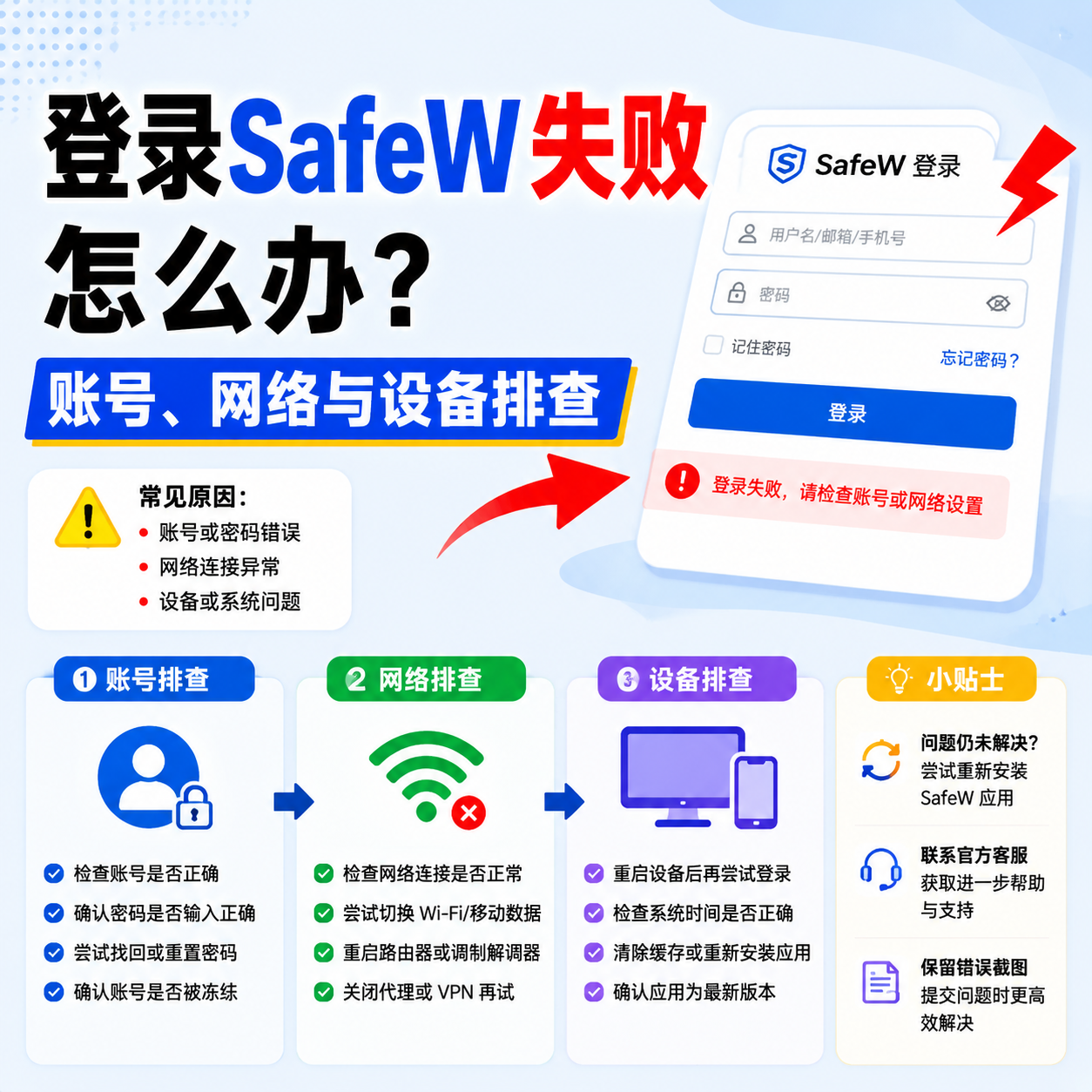
If SafeW login fails, don't retry endlessly — repeated attempts can trigger security controls. Use this checklist to check account, network and device.
1. Check the account
Confirm account status: is the password correct, is the account restricted, can you receive verification codes? If it says "account abnormal", follow the previous guide. After multiple wrong passwords, pause before retrying.
2. Check the network
Many login failures are network issues. Switch between Wi-Fi and mobile data; if a VPN or accelerator is on, turn it off first; corporate or campus networks may have restrictions, so try another environment.
3. Check the device
Clear the client cache, or reinstall the latest version. Make sure the system time is correct — a wrong clock can break verification codes and encryption checks.
4. Check verification codes
If you can't receive codes, see whether SMS or email is blocked; a dead phone or weak signal can also block them. Wait a minute before resending — don't spam the button.
Still stuck? Contact support
If all the above fails, contact support with your account and error screenshots so they can investigate.
Summary
Login failures are usually small network or device issues. Calm troubleshooting beats repeated retries.