
SafeW privacy settings: 5 toggles you should turn off
SafeW is encrypted by default, but you can make it even more private. This guide covers 5 toggles to turn off, plus how to enable secret chat, burn-after-reading and 2FA.
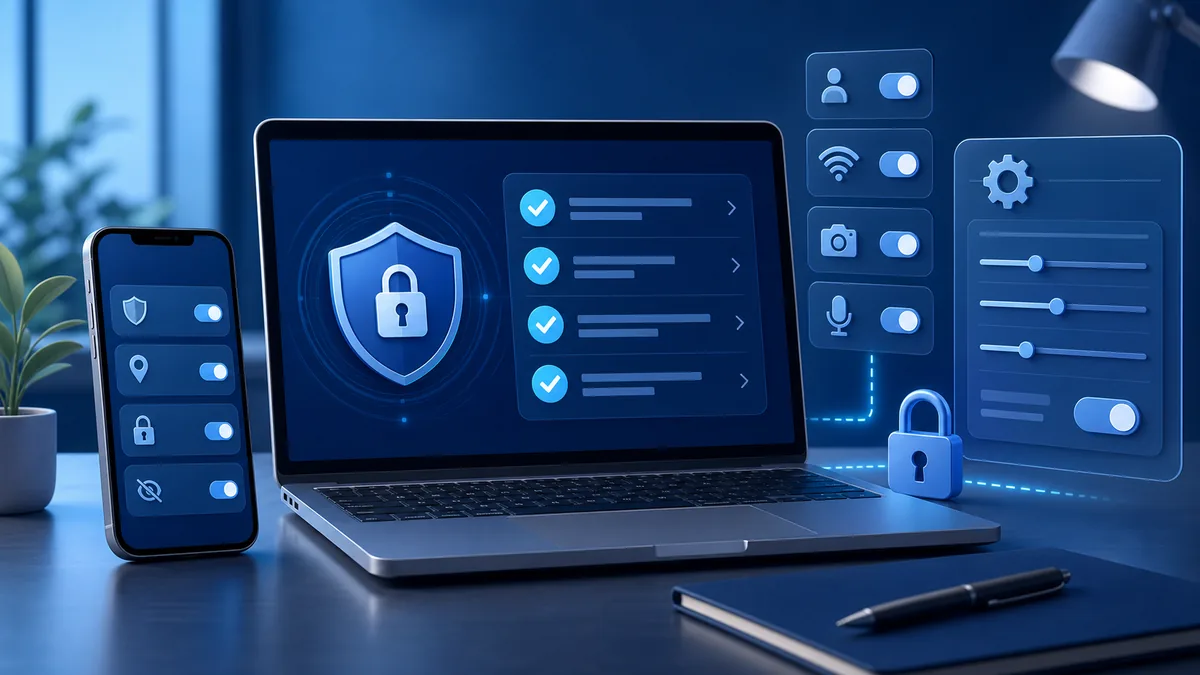
SafeW is end-to-end encrypted by default, but a few privacy toggles can make your experience even safer. Here are five to consider turning off or tightening.
1. Turn off message preview
Message preview shows chat content in lock-screen notifications. Turn it off in "Settings > Notifications" so anyone picking up your phone only sees "You have a new message".
2. Turn off read receipts
Don't want others to know whether you've read a message? Turn off "read receipts" in "Settings > Privacy".
3. Hide online status
You can also hide "last seen" and "online status" to avoid being watched. Find it in "Privacy" too.
4. Disable contact sync
If you don't want the platform reading your contacts, turn off "contact matching". Adding friends becomes manual, but it's cleaner.
5. Enable two-factor authentication
This one you turn ON. In "Account Security", enable 2FA so logging in requires an extra code — much harder for anyone to steal your account.
Advanced: secret chat + burn-after-reading
For very important conversations, use "secret chat" with burn-after-reading and no forwarding. Add an extra layer of auto-destruction to sensitive info.
Summary
Privacy doesn't stop after install. Go through these toggles once, and SafeW becomes truly reassuring.